qpi-config
Copyright © Quectel Wireless Solutions Co., Ltd. 2026. All rights reserved.
qpi-config is a tool for configuring Quectel Pi H1 single-board computer. It supports the following functions:
Configure the operating mode and brightness of the on-board LEDs.
Configure the operating mode and speed of the fan interface.
Configure the operating mode of the 40-pin interface.
Query the temperature of each system module.
Query the system’s CPU, memory, and storage status.
Configure Wi-Fi.
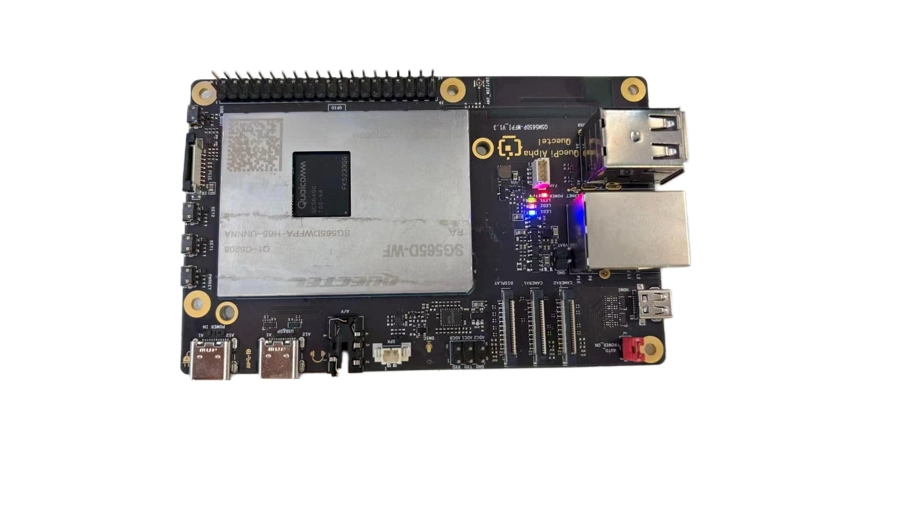
On-board LED configuration
Run the following command to configure the operating mode:
sudo qpi-config led mode <blue|green|red> <heartbeat|none>
Run the following command to configure the brightness:
sudo qpi-config led brightness <blue|green|red> <0-511>
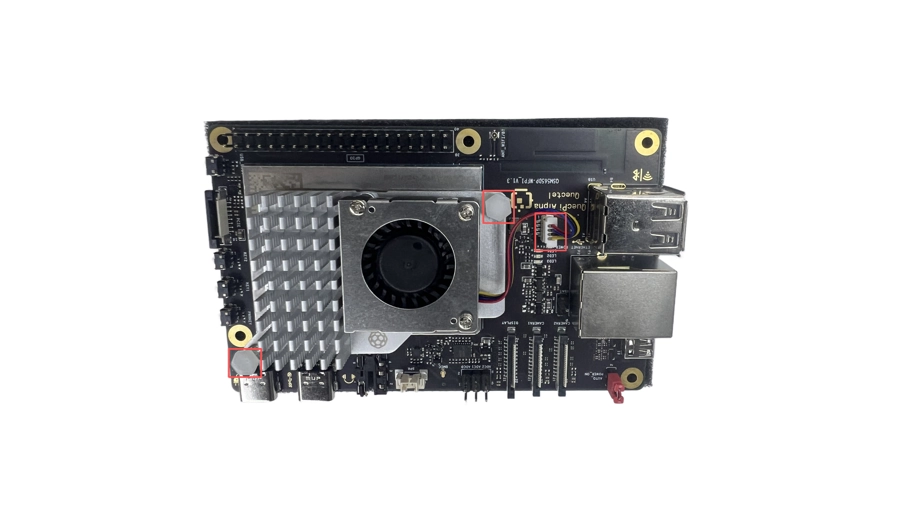
Fan configuration
Run the following command to configure the fan speed:
sudo qpi-config fan set speed <0-255>
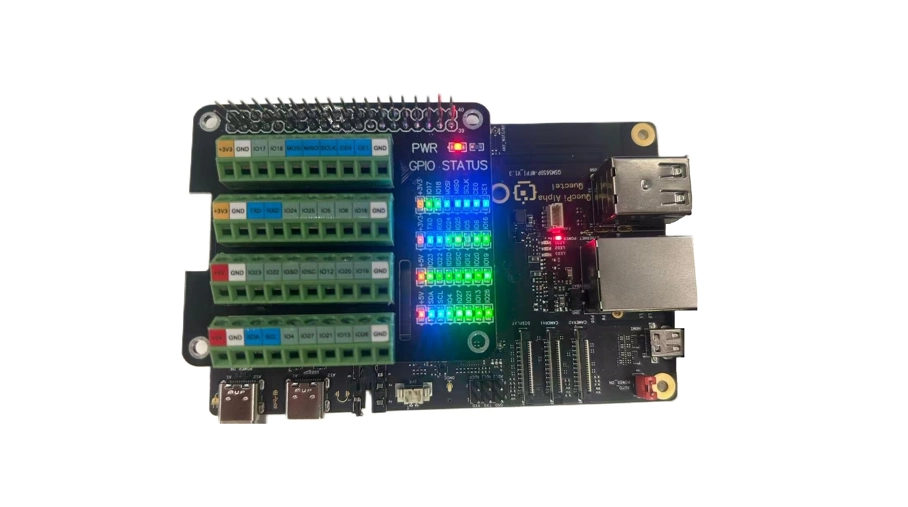
40-Pin interface operating mode configuration
First modify the configuration file /etc/qpi-config/qpi-config.ini, and then run the following command to apply the configuration:
sudo qpi-config 40pin set
Note: The changes will take effect after the board is rebooted.
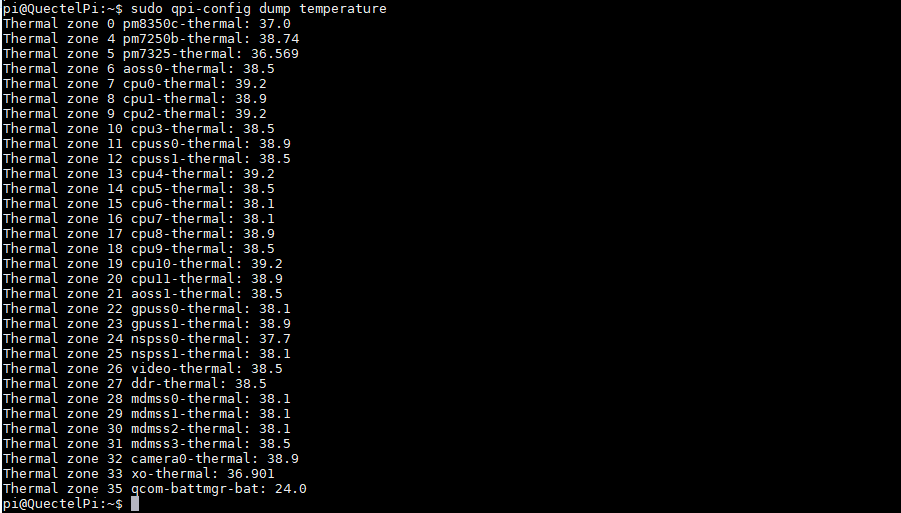
Query system module temperatures
Run the following command to query module temperatures:
sudo qpi-config dump temperature
Query system CPU, memory, and storage status
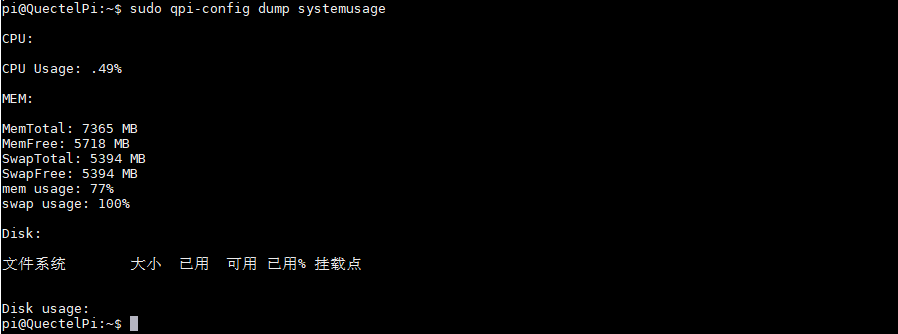
Run the following command to query system CPU, memory, and storage status:
sudo qpi-config dump systemusage
Configure Wi-Fi
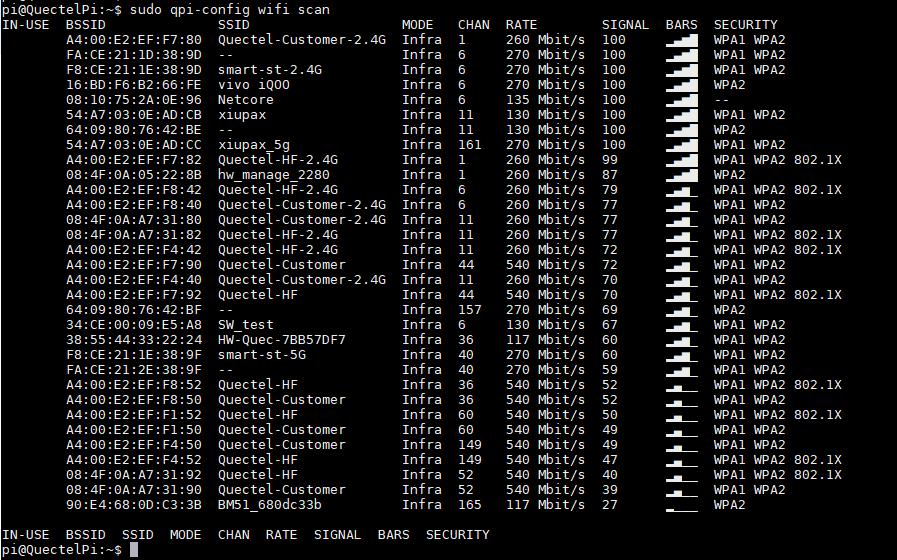
Run the following command to scan for available Wi-Fi networks:
sudo qpi-config wifi scan
Run the following command to view existing Wi-Fi connections:
sudo qpi-config wifi show
Run the following command to check the Wi-Fi connection status:
sudo qpi-config wifi dump <connection uuid>
Run the following command to add Wi-Fi connection:
sudo qpi-config wifi connect <ssid> <password>
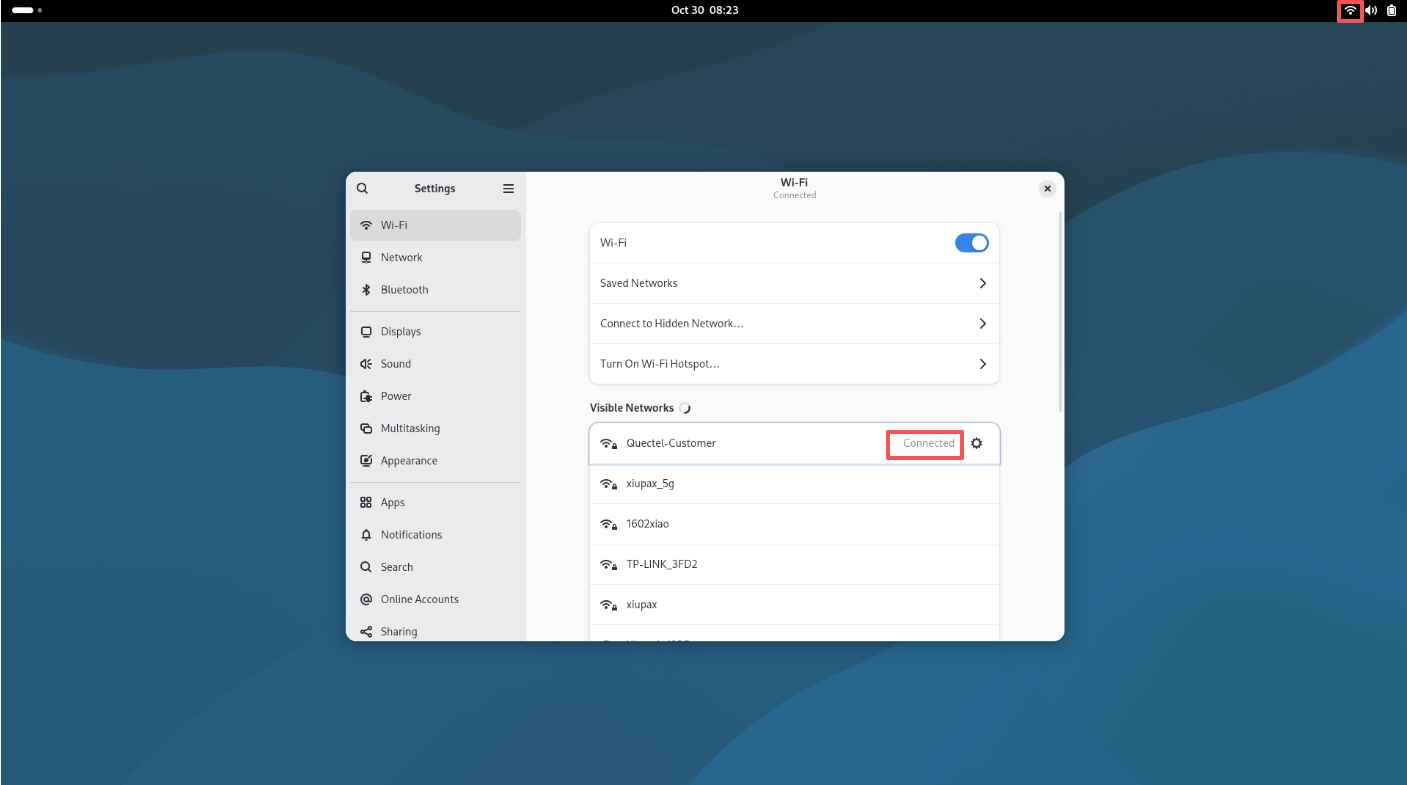
After successful connection, the corresponding wireless network status will be displayed as Connected, and the Wi-Fi connection icon will appear in the upper right corner.
Run the following command to delete Wi-Fi connection:
sudo qpi-config wifi remove <connection uuid>